


A9PLAY Download – Install on Any Device
A9PLAY Official Download Options – Choose Your Device
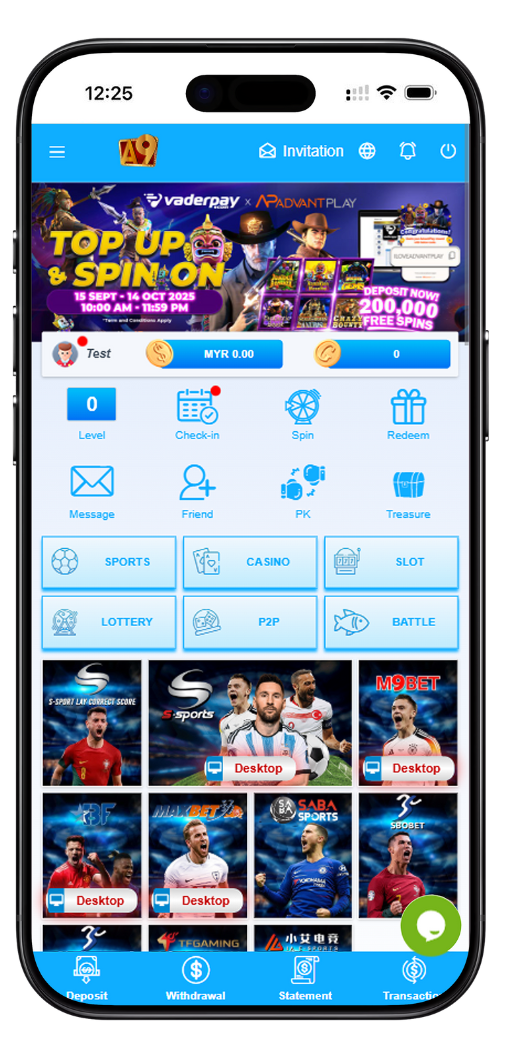
A9PLAY offers multiple ways to access your account. You can download the native app on Android via “Add to Home Screen”, install on iOS using Safari, search “A9Today” on Huawei AppGallery, or create a desktop shortcut on Windows and macOS. All methods are free, secure, and take less than one minute. Below is the complete A9PLAY download guide for every device.
Android – How to Download and Install A9PLAY
Step 1 – Open Chrome on Your Android Device
To install A9PLAY on Android, you must use Google Chrome browser. Other browsers may not show the "Add to Home Screen" option correctly. Make sure Chrome is updated to the latest version from Google Play Store.
Step 2 – Go to A9PLAY Website
In Chrome, navigate to the official A9PLAY page. Wait for the page to fully load. Do not close the browser or switch tabs during this process.
Step 3 – Tap the Three-Dot Menu (⋮)
Look at the top-right corner of Chrome. Tap the three vertical dots (⋮). A dropdown menu will appear with several options including "Add to Home screen".
What if you see "Install app" instead?
Sometimes Chrome may show "Install app" instead of "Add to Home screen" for A9PLAY. If this happens, try switching to Airplane Mode for 5 seconds, then turn internet back on and refresh the page. After reconnecting, the shortcut usually works. This is a known Chrome behavior that A9PLAY users can easily fix.
Step 4 – Select "Add to Home Screen"
Tap "Add to Home screen" from the menu. Chrome will ask you to name the shortcut. Enter a name you recognize – for example A9Play or A9PLAY.
Step 5 – Confirm and Find the Icon on Your Home Screen
Tap "Add" then "Add to Home screen" again if prompted. The A9PLAY icon will now appear on your Android home screen. Tap it anytime to launch A9PLAY instantly, just like a native app.
iOS (iPhone / iPad) – How to Install A9PLAY Shortcut
Step 1 – Open Safari Browser (Required)
On iPhone or iPad, A9PLAY shortcut installation only works in Apple's Safari browser. Chrome and other browsers on iOS do not support "Add to Home Screen" the same way. Always use Safari for A9PLAY iOS installation.
Step 2 – Go to A9PLAY Website
Type the A9PLAY address into Safari's address bar. Wait for the page to load completely. Make sure you are on the correct A9PLAY page before proceeding.
Step 3 – Tap the Share Button
At the bottom of Safari (center), look for the Share button – a square with an upward arrow. Tap it. This opens the iOS sharing menu with multiple options.
Step 4 – Choose "Add to Home Screen"
Scroll down the sharing menu until you see "Add to Home Screen". Tap it. Safari will then show a preview of the A9PLAY icon and a text field for the shortcut name.
Step 5 – Customize Name and Tap "Add"
Enter a name like A9Play or A9PLAY. You can keep the default name or change it to something you prefer. Tap "Add" in the top-right corner. The A9PLAY icon will now appear on your iOS home screen.
How to use your new A9PLAY iOS shortcut
Tap the A9PLAY icon on your home screen. Safari will open directly to A9PLAY. The shortcut behaves like an app and keeps you logged in if you choose to stay signed in. You can move the icon anywhere on your home screen or even in a folder.
Huawei – How to Download A9PLAY via AppGallery
Step 1 – Open Huawei AppGallery
On any Huawei device (P series, Mate series, Nova, etc.), open the pre-installed AppGallery app. This is Huawei's official app store, fully supported by A9PLAY.
Step 2 – Search for "A9Today"
In AppGallery's search bar, type A9Today. This is the official Huawei app name for A9PLAY. Do not search for "A9PLAY" – use exactly "A9Today" as shown in the A9PLAY download page.
Step 3 – Tap Install
Find the official A9Today app from the search results. Tap the "Install" button. The app will download and install automatically. This may take a few seconds depending on your internet speed.
Step 4 – Open A9Today and Log In to A9PLAY
After installation, tap "Open" from AppGallery or find the A9Today icon on your home screen. Launch the app. Use your A9PLAY User ID or mobile number (with country code) and password to log in.
No Google services required for Huawei A9PLAY
Unlike many other platforms, A9PLAY via A9Today works perfectly on Huawei devices without Google Play Services. AppGallery handles all updates automatically. This makes A9PLAY one of the most Huawei-friendly gaming platforms available.
H5 Version – Instant A9PLAY Access Without Installation
What is A9PLAY H5?
H5 stands for HTML5 – a web-based version of A9PLAY that runs directly in your browser. No download, no installation, no storage space required. The H5 version works on any device: Android, iPhone, iPad, Windows PC, Mac, and even Linux.
How to Access A9PLAY H5
Simply open any modern browser (Chrome, Safari, Edge, Firefox) on any device. Go to the A9PLAY website. Click the "H5 (User Login)" option from the A9PLAY download page. Then enter your login credentials and start playing immediately.
Advantages of A9PLAY H5 over native app
No storage space used. No updates to install – always the latest version. Works on older devices. Same security as the app (Cloudflare protected). Perfect for public computers or temporary access. All A9PLAY features are available in H5 mode.
Windows – How to Create A9PLAY Desktop Shortcut
Method 1 – Drag & Drop (All Browsers)
Open Chrome, Edge, or Firefox. Go to A9PLAY website. Look at the address bar – find the lock icon (🔒) on the left side of the URL. Click and hold the lock icon, then drag it to your Windows Desktop. Release. A shortcut will appear. Double-click it anytime to open A9PLAY in your default browser.
Method 2 – Chrome "Create Shortcut" Method
Open Chrome and go to A9PLAY. Click the three-dot menu (⋮) in the top-right corner. Go to More Tools → Create Shortcut…. A popup will appear. Name it A9PLAY. Check the box "Open as window" (optional – this makes A9PLAY open like a standalone app without browser tabs). Click "Create". The shortcut appears on your Desktop.
Method 3 – Microsoft Edge "Install as App" Method
Open Microsoft Edge. Navigate to A9PLAY. Click the three-dot menu (⋮) → Apps → Install this site as an app. Edge will ask you to name the app. Enter A9PLAY. Click "Install". The site will behave like a native Windows app. You can pin it to the Desktop, Start Menu, or Taskbar.
Method 4 – Manual Desktop Shortcut
Right-click on an empty area of your Windows Desktop. Select New → Shortcut. In the location field, paste the A9PLAY website URL. Click "Next". Name the shortcut A9PLAY. Click "Finish". A standard shortcut icon will appear. Double-click to open A9PLAY in your default browser.
Which Windows method is best for A9PLAY?
For the most app-like experience, use Edge's "Install this site as an app" or Chrome's "Open as window" option. For simplicity, use Drag & Drop or Manual Shortcut. All methods are safe and officially supported by A9PLAY.
macOS – How to Create A9PLAY Desktop Shortcut
Method 1 – Safari Drag & Drop (.webloc file)
Open Safari browser on your Mac. Go to A9PLAY website. Look at the address bar – find the URL or the lock icon (🔒) on the left side. Click and drag the URL or lock icon directly to your Desktop. Release. Safari creates a .webloc file. Double-click this file anytime to open A9PLAY in Safari.
Method 2 – Chrome "Create Shortcut" Method (Same as Windows)
Open Chrome on macOS. Go to A9PLAY. Click the three-dot menu (⋮) → More Tools → Create Shortcut…. Name it A9PLAY. Check "Open as window" if you want an app-like experience. Click "Create". The shortcut appears on your Desktop or in your specified location.
Method 3 – Custom Icon for A9PLAY Shortcut (Optional)
After creating your A9PLAY shortcut, you can customize its icon. Right-click (or Control-click) the shortcut → Get Info. Find an A9PLAY logo image online. Copy the image (Cmd+C). Click the small icon preview at the top of the Get Info window. Paste (Cmd+V). The shortcut icon changes to your custom image. This makes your A9PLAY shortcut easy to spot.
macOS note for A9PLAY users
The Safari .webloc method does not require any browser extensions or third-party tools. Chrome's shortcut method works exactly like Windows. Both methods are fast and take under 30 seconds. A9PLAY works perfectly on all macOS versions including Ventura, Sonoma, and Sequoia.
Troubleshooting A9PLAY Download & Installation
Android "Install app" instead of "Add to Home Screen"
Solution: Enable Airplane Mode for 5 seconds, then disable it. Refresh the A9PLAY page. The option should change back to "Add to Home screen". If not, try clearing Chrome cache or using a different browser temporarily.
iOS Safari missing "Add to Home Screen" option
Solution: Make sure you are not in Private Browsing mode. In Safari, tap the tabs icon (two squares), then tap "Private" to turn it off. Reload the A9PLAY page. The Share menu will now show "Add to Home Screen".
Huawei AppGallery cannot find "A9Today"
Solution: Make sure your AppGallery region is set to Malaysia or a supported Asian country. Clear AppGallery cache or update AppGallery to the latest version. If still not found, use the H5 version of A9PLAY instead.
Windows shortcut opens wrong website
Solution: Delete the shortcut and recreate it. When dragging the lock icon, make sure you are on the correct A9PLAY page. For manual shortcut, double-check the pasted URL has no typos.
macOS .webloc file does nothing when double-clicked
Solution: Right-click the .webloc file → Open With → Safari. Also check if Safari is your default browser. If the issue persists, delete and re-drag the lock icon from the A9PLAY address bar.
Frequently Asked Questions – A9PLAY Download
Is A9PLAY free to download?
Yes. All A9PLAY installation methods – Android Add to Home Screen, iOS Safari shortcut, Huawei A9Today app, Windows shortcuts, macOS webloc – are completely free. A9PLAY never charges for downloading or installing.
Do I need to download A9PLAY again after updating my phone?
If you used "Add to Home Screen" on Android or "Add to Home Screen" on iOS, the shortcut remains after system updates. For Huawei A9Today app, updates come automatically through AppGallery. For desktop shortcuts, they remain unless you delete them manually.
Which A9PLAY download method is the safest?
All methods are safe. However, the Huawei A9Today app from AppGallery is the only native app version. The "Add to Home Screen" and desktop shortcut methods simply create bookmarks that open in your browser. A9PLAY uses Cloudflare security on all platforms.
Can I use multiple A9PLAY download methods on the same device?
Yes. You can have both the Android home screen shortcut and also use the H5 version. On Windows, you can create multiple shortcuts using different browsers. A9PLAY does not limit how you access your account.
What is the difference between A9Today and A9PLAY?
A9Today is the official Huawei app name for A9PLAY. The app contains the same A9PLAY platform, same login system, same features. Only the name differs for AppGallery compatibility. Your A9PLAY login credentials work exactly the same on A9Today.
I lost my A9PLAY home screen icon – how to restore?
Simply follow the same installation steps again. Android: Chrome → three-dot menu → Add to Home screen. iOS: Safari → Share → Add to Home Screen. Your A9PLAY account and data remain unchanged. The shortcut only takes 10 seconds to recreate.
Get A9PLAY on Any Device – Free & Fast Installation
Download A9PLAY now. Android Add to Home Screen in 5 steps. iOS Safari shortcut. Huawei AppGallery search “A9Today”. Windows desktop shortcut via Chrome, Edge, or drag & drop. macOS webloc from Safari. H5 version for instant browser access. All methods are free, secure, and take less than one minute. Choose your device and start playing A9PLAY today.
DOWNLOAD A9PLAY NOW